TwinPixels - Compare images side by side
A downloadable tool for Windows and Linux
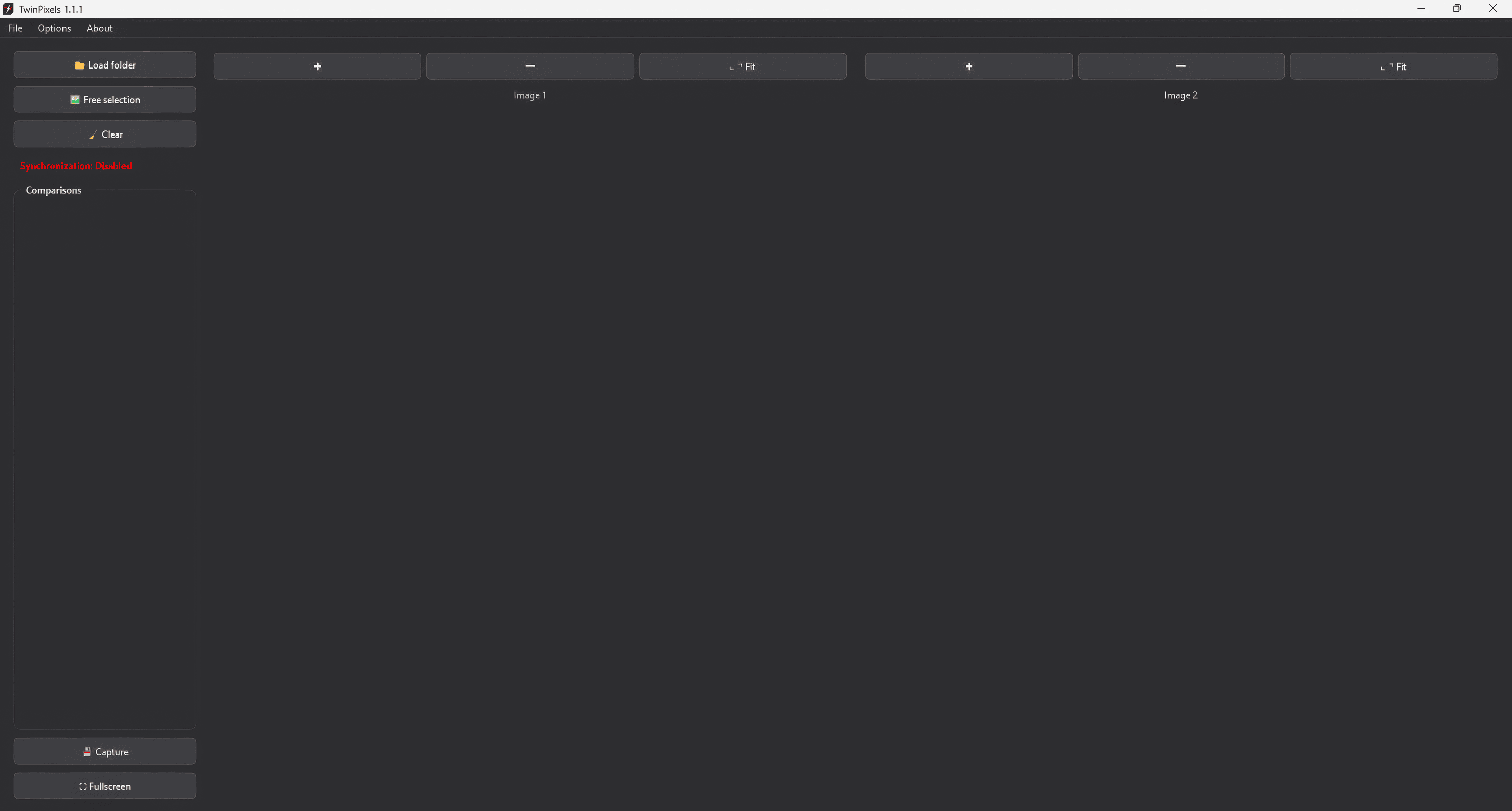

TwinPixels is an application for viewing and comparing images side by side. It allows you to load pairs of images from entire folders or select files manually, and features zoom and synchronized movement functions. You can add multiple pairs of images and save lists for presentations with its full-screen mode and keyboard control.
THEMES: Light, Dark.
INTERFACE LANGUAGES: Indonesian, German, English, Spanish, French, Italian, Swahili, Portuguese, Vietnamese, Turkish, Russian, Ukrainian, Urdu, Arabic, Hindi, Bengali, Thai, Korean, Japanese, Simplified Chinese
IMAGE LOADING
📂 Load folder: Select a folder → images are automatically grouped in pairs in alphabetical order.
🖼️ Free selection: Select individual images by holding down Ctrl → they are paired in the exact order selected.
Pairs appear in the side list → click to view.
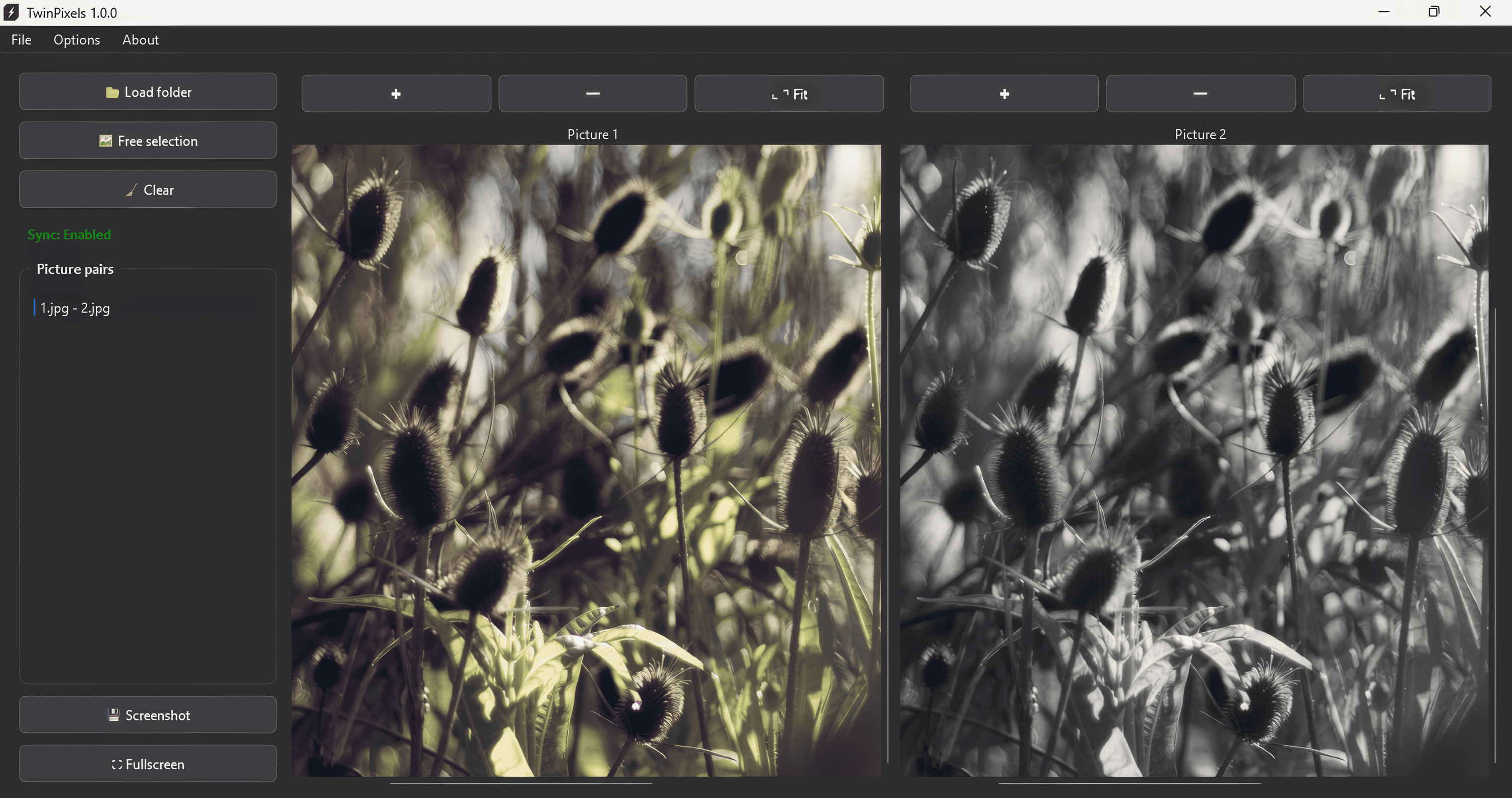
AUTO SYNC
Activated when both images are the same size (width/height).
Status visible in the left panel (green=activated, red=deactivated).
When activated: Zoom and movement work the same in both viewfinders.
SCREENSHOT
Click on “💾 Screenshot”.
Choose the location and format to save.
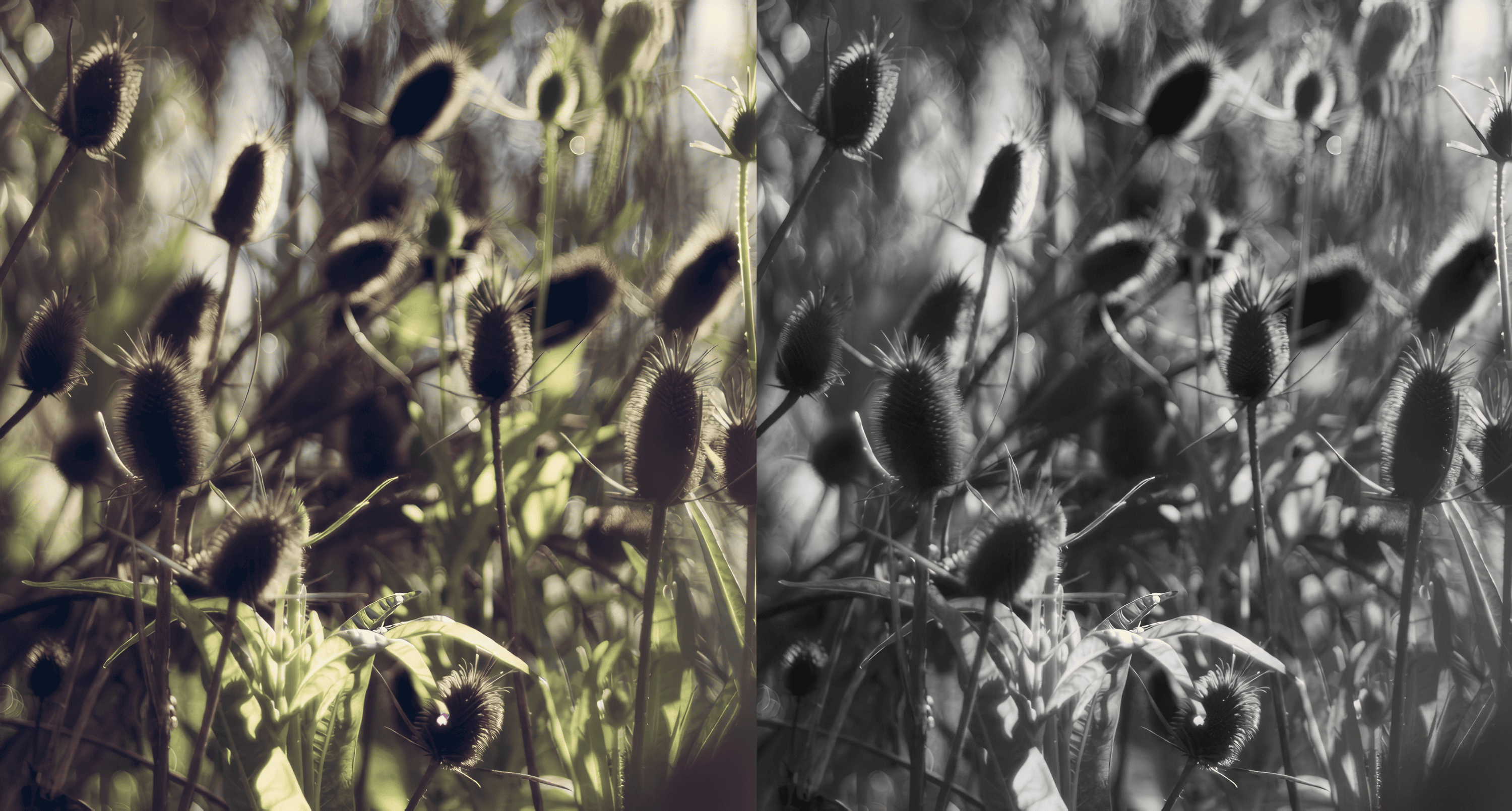
The screenshot will include both images side by side in a single image using the current view, saving a copy.
Screenshot formats: PNG (better quality), JPEG (smaller file size).
SAVE COMPARISON LIST
File menu → Save list (Ctrl+S) → generates a .tpxl file with all current pairs.
File menu → Load list (Ctrl+O) → Loads the saved list.
IMPORTANT
Selection order: In “Free selection,” choose the images in the exact order you want to pair them.
Synchronization only works with images of identical dimensions. This does NOT mean that they must have the same content, only that they must have the same width and height in pixels.
The application can handle very large images, with a limit of 30,000px.
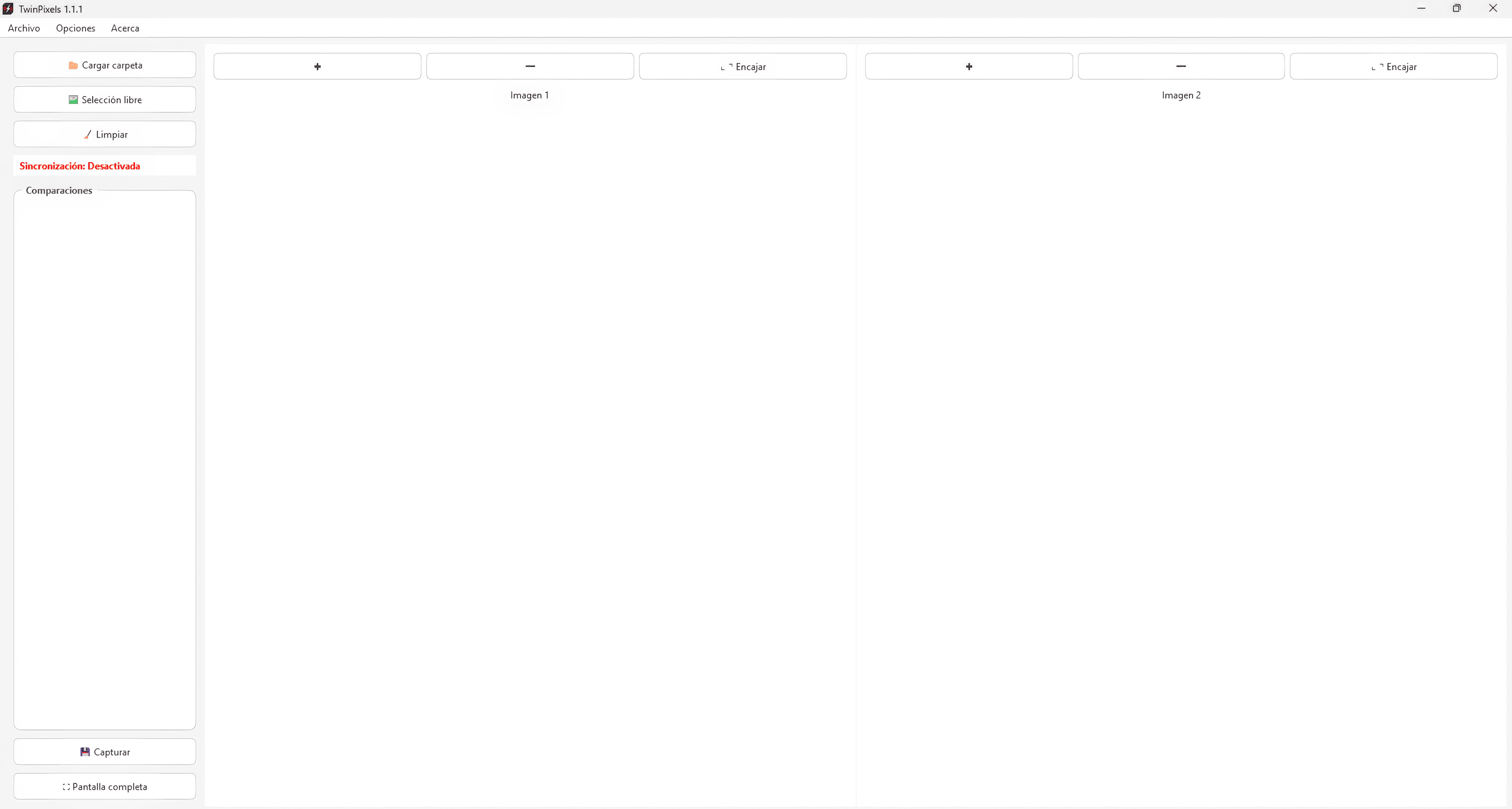

TwinPixels es una aplicación para visualizar y comparar imágenes lado a lado. Permite cargar pares de imágenes desde carpetas completas o seleccionar los archivos manualmente, cuenta con funciones de zoom y movimiento sincronizado. Puede añadir múltiples pares imágenes y guardar listas para presentaciones con su modo de pantalla completa y control con el teclado.
TEMAS: claro, oscuro.
LENGUAJES DE LA INTERFAZ: indonesio, alemán, inglés, español, francés, italiano, suajili, portugués, vietnamita, turco, ruso, ucraniano, urdu, árabe, hindi, bengalí, tailandés, coreano, japonés, chino simplificado
CARGA DE IMÁGENES
📂 Cargar carpeta: Selecciona una carpeta → las imágenes se agrupan automáticamente en pares según orden alfabético.
🖼️ Selección libre: Selecciona imágenes individuales manteniendo Ctrl → se emparejan en el orden exacto de selección.
Los pares aparecen en la lista lateral → haz clic para visualizar.
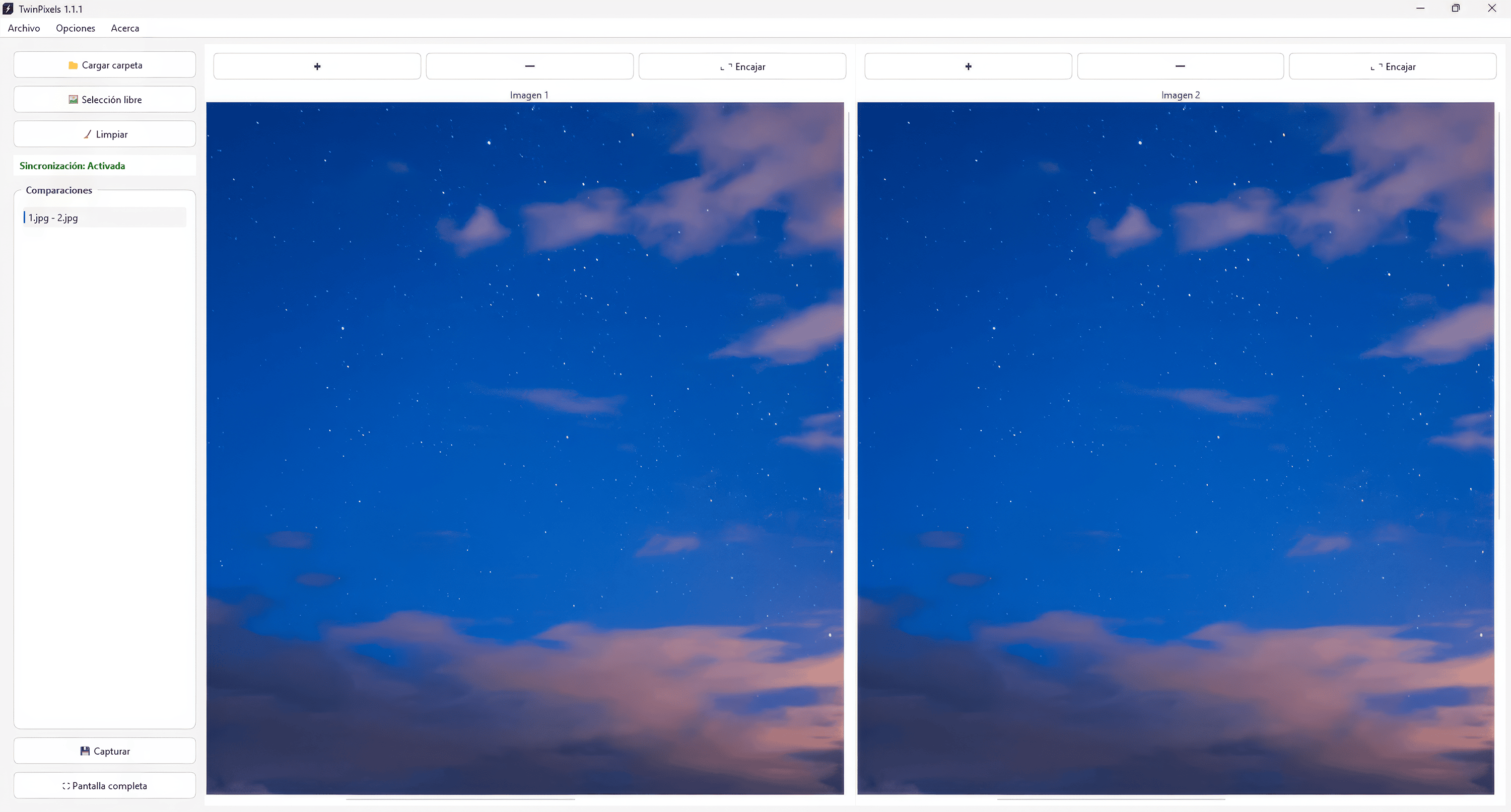
SINCRONIZACIÓN AUTOMÁTICA
Se activa cuando ambas imágenes tienen el mismo tamaño (ancho/alto).
Estado visible en el panel izquierdo (verde=activada, rojo=desactivada).
Cuando está activada: El zoom y movimiento actúan igual en ambos visores.
CAPTURA DE PANTALLA
Haz clic en "💾 Capturar".
Elige ubicación y formato para guardar.
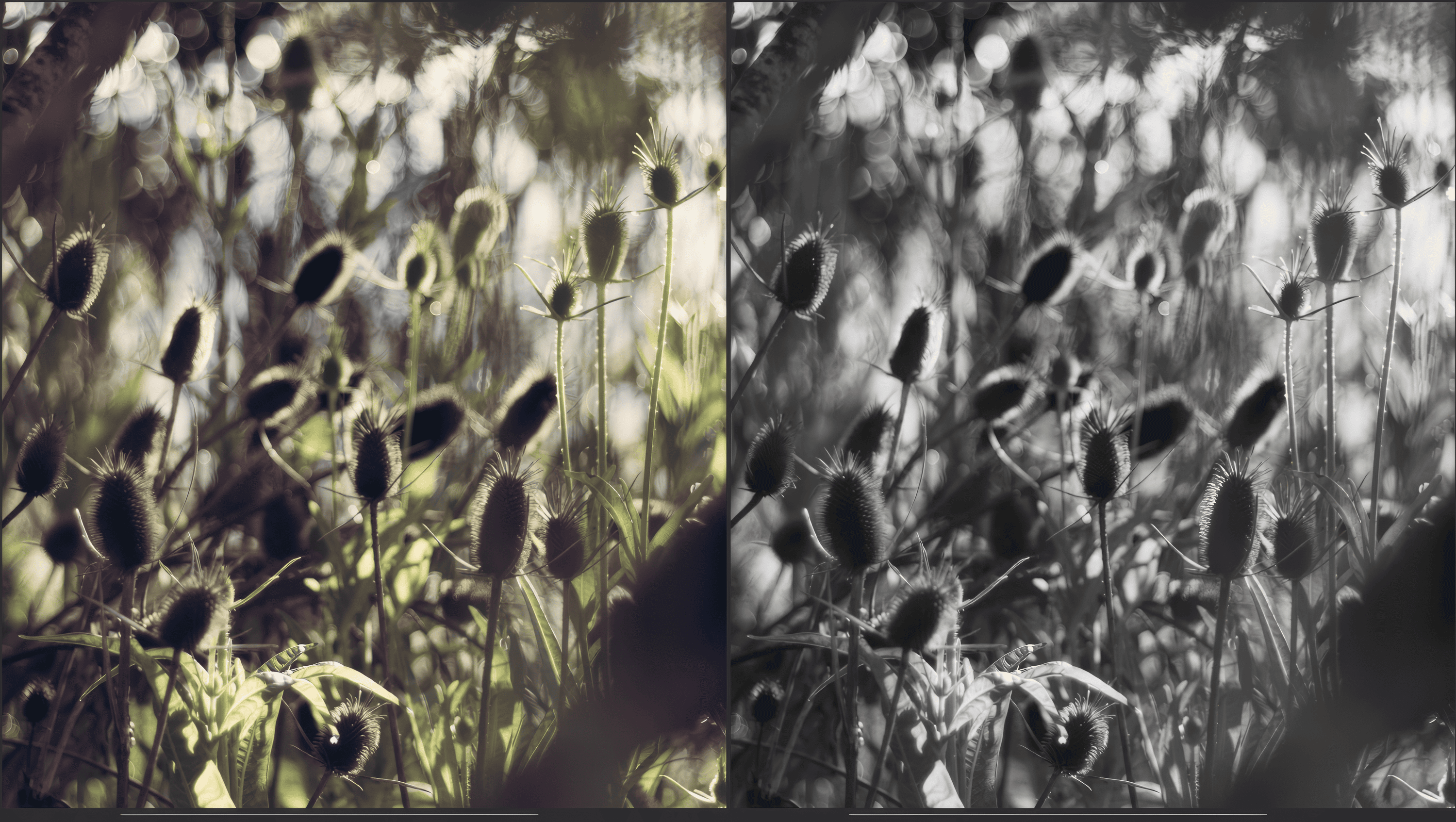
La captura incluirá ambas imágenes lado a lado en una sola usando la vista que se tenga en ese momento, guardando una copia.
Formatos de Captura: PNG (mejor calidad), JPEG (menor tamaño).
GUARDAR LISTA DE COMPARACIONES
Menú Archivo → Guardar lista (Ctrl+S) → genera un archivo .tpxl con todos los pares actuales.
Menú Archivo → Cargar lista (Ctrl+O) → Carga la lista guardada.
IMPORTANTE
Orden de selección: En "Selección libre", elige las imágenes en el orden exacto que quieres emparejarlas.
La sincronización solo funciona con imágenes de dimensiones idénticas, esto NO significa que deban tener el mismo contenido, solo se refiere a su ancho y alto en pixeles.
La aplicación puede manejar imágenes muy grandes, el límite son 30.000px.
INTERFACE LANGUAGES: Bahasa Indonesia, Deutsch, English, Español, Français, Italiano, Kiswahili, Português, Tiếng Việt, Türkçe, Русский, українська мова, اردو, العربية, हिन्दी, বাংলা, ภาษาไทย, 한국어, 日本語, 简体中文
Application compatible with: Windows x64; Linux x64
Download
Click download now to get access to the following files:
Development log